How to run a live quiz game the whole room joins from their phone
Build the deck, put the code on the big screen, and read the answers as they land. Players need no app and no account.
· 5 min read · The Quack team
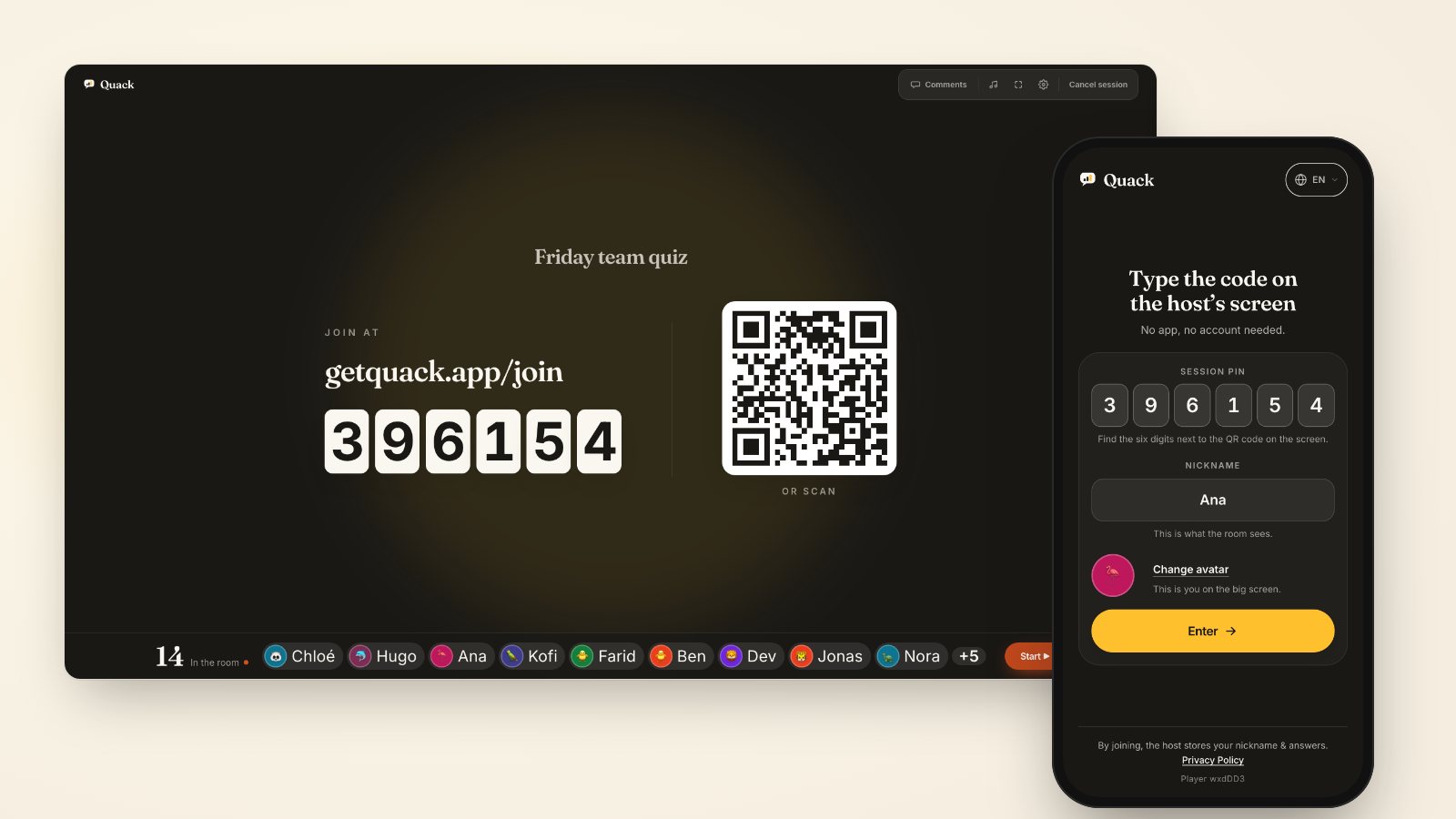
A live quiz works when the whole room is playing within a minute of you saying so. In Quack that takes a deck, a big screen and the phones people already carry. They open getquack.app/join, type the six-digit code from your screen, pick a nickname, and they are in. Players install nothing and never make an account. You, the host, need a free account to present.
Here is how to run one from the first slide to the final podium.
Build the deck around what you want the room to do
Decide what the quiz is for before you write a question: waking a room up, checking what landed, or a bit of competition. Then pick formats that do that job.
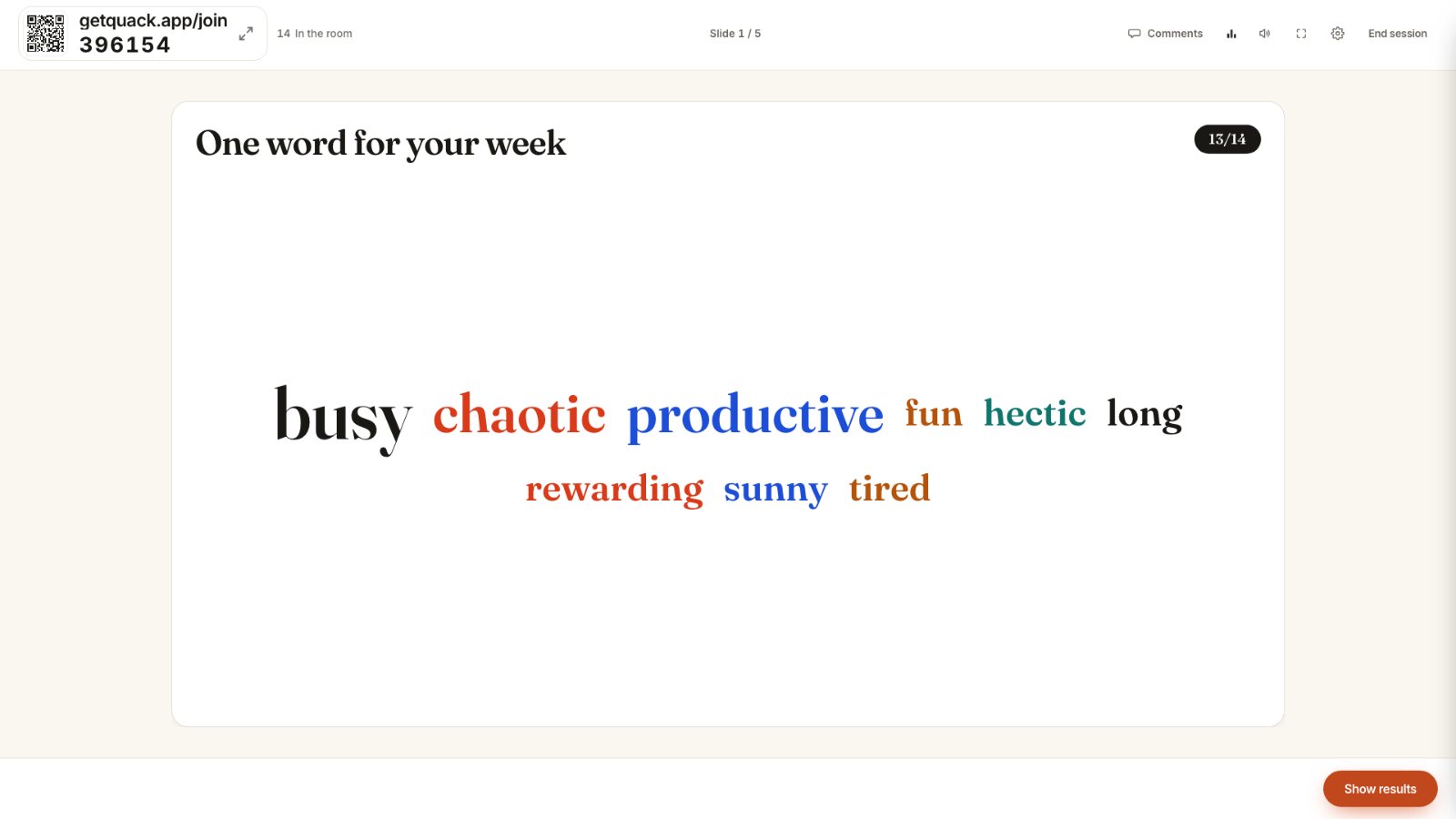
- Openers. A word cloud ("One word for your week"), a quick poll, or This or That. There are no wrong answers, so nobody feels exposed in the first minute.
- Scored rounds. Multiple choice, true or false, type the answer, guess the number, put in order, and image questions. These are the ones that earn points.
- Checking understanding. Rating scales, ranking, open text, and Q&A where the room upvotes the questions it wants answered.
Mix them. Five multiple-choice questions in a row reads as a test, and a word cloud or a ranking between them changes the pace. Keep each question to one idea and each option short enough to read from the back row.
If you would rather start from something, describe a topic, or upload a PDF, Word file or slide deck, and Quack AI drafts the slides for you to edit. The free plan comes with 20 AI credits, and a slide costs one.
Put the code on the big screen and leave it there
Press Present and the lobby takes over the screen: getquack.app/join, the six-digit code, and a QR code. Scanning the QR code fills the code in for them, so most people only type a nickname. Names appear along the bottom as people arrive, with a count of who is in the room. Start when the room is ready.
The code does not disappear when you start. It stays in the corner of every slide with a small QR code, and clicking it, or pressing J, opens a large one beside the slide. Latecomers join in the middle of the session and start from zero points, so nobody waits for the next round to get in. Once you want the room fixed, switch the session to "Closed to new players". Anyone who already joined can still get back in if their phone drops out.
A session holds up to 300 players, and nicknames are checked before anyone joins, so a rude name gets sent back to be changed instead of appearing on your screen.
Show the question on the screen and collect answers on the phones
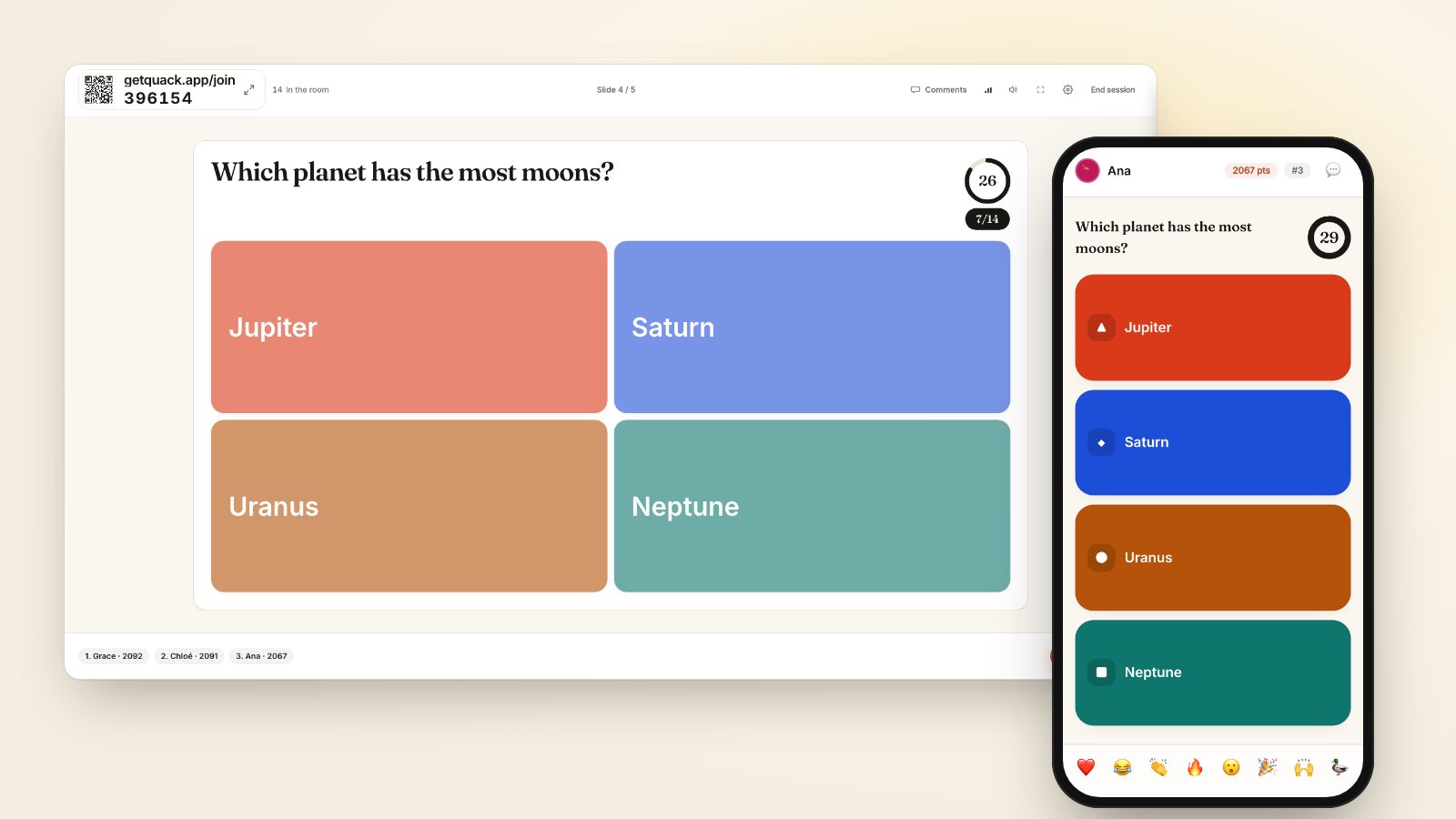
Each phone shows the options as coloured tiles with a shape on each, the time left, and the player's points and rank. The big screen shows the question, the timer and a counter of how many have answered.
What the room sees while answers come in depends on the slide. Polls and word clouds fill in live, which is half the fun of an opener. Quiz answers stay hidden until the reveal, so nobody copies the crowd. The question closes on its own when everyone has answered or the timer runs out, and "Reveal answer" closes it early if you are done waiting.
Read the reveal before you press Next
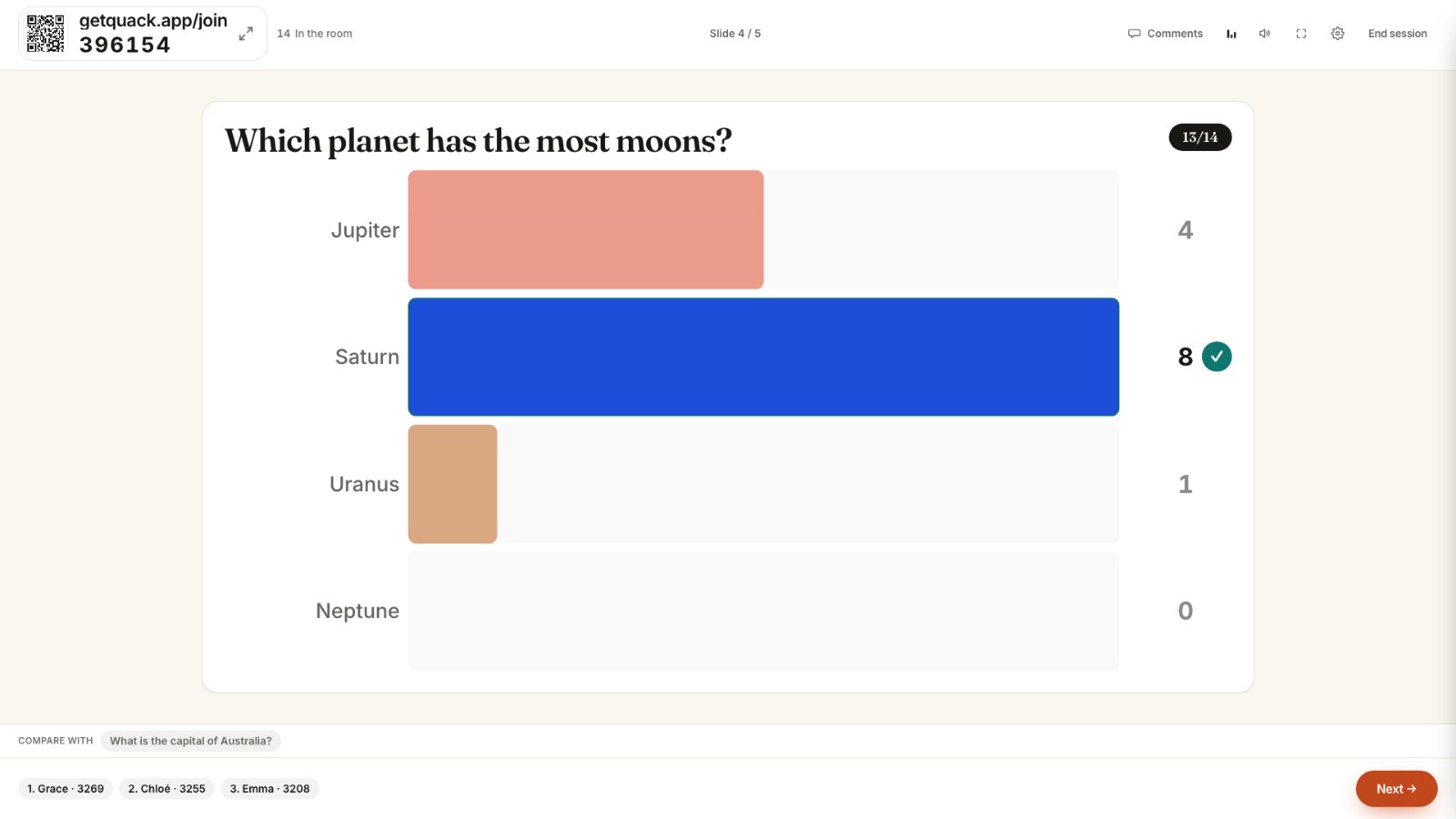
The reveal shows how many picked each option, with the right one marked. Give it a few seconds before moving on, because it tells you what to do next.
- Almost everyone got it. Say so and move faster. The room is with you.
- The room split. Stop here. Ask someone who picked the popular wrong answer why it looked right. That conversation is worth more than the next question.
- Nearly nobody got it. Explain it now, while everyone still remembers what they picked.
Four people picking Jupiter in the example above is useful to know: Jupiter has the most famous moons, which is a different question. Questions that split the room go further into writing wrong options that teach something.
Keep the score where it helps
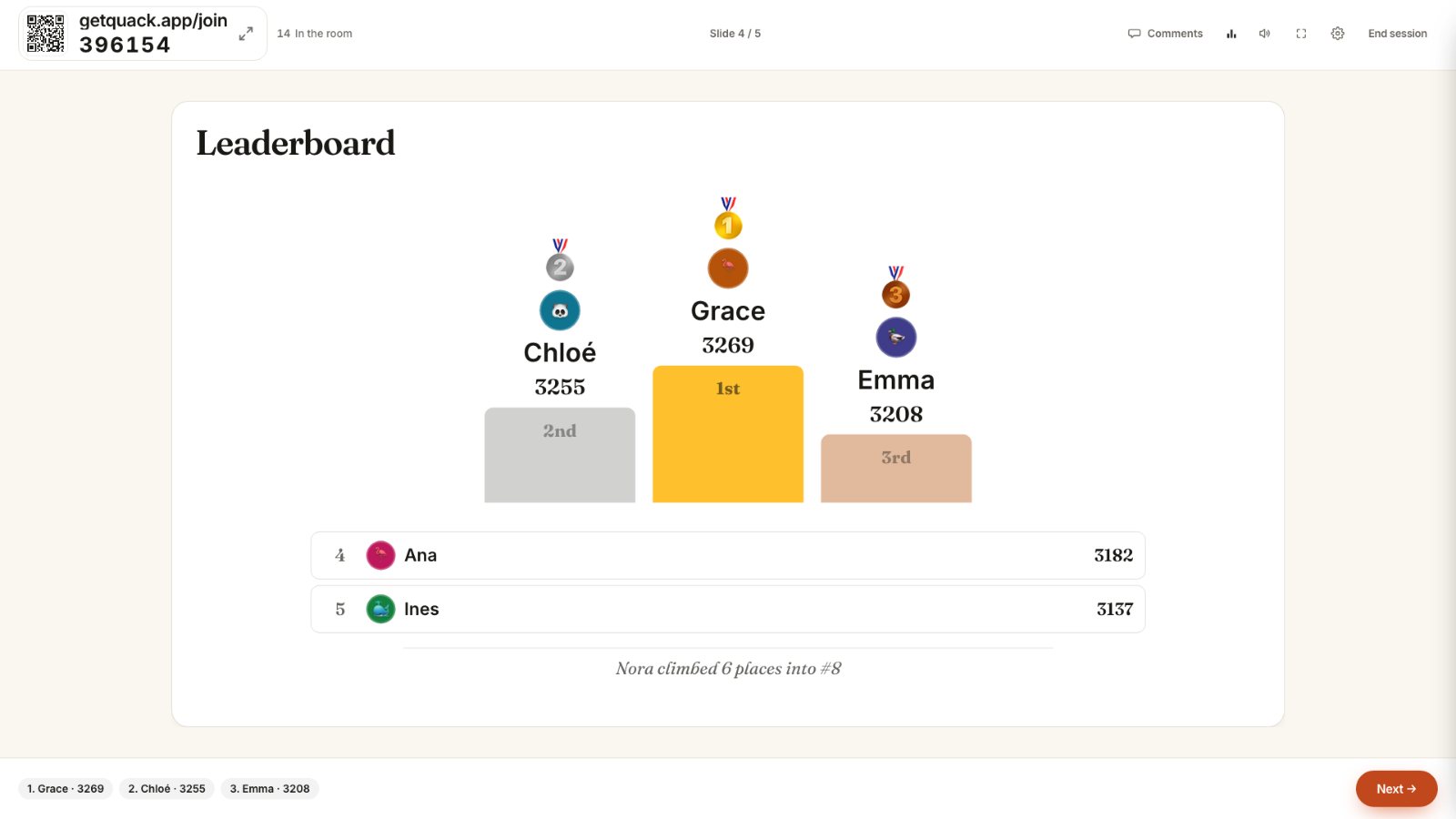
After each scored question the room sees the standings: the top three on a podium, the next two below, and a line about whoever climbed the most. The session ends on a final podium, and every phone shows where its player finished.
Two settings in the deck decide how much the score matters:
- Show standings after each question. On by default. Switch it off and the score only appears at the end.
- Speed counts or Accuracy only. With speed, a right answer at the start of the timer earns twice as much as one at the buzzer. With accuracy only, any right answer inside the time earns full points, which suits a classroom where thinking time is the point. Why participants guess early explains when speed scoring backfires.
For a session with no stakes at all, build it from polls, word clouds and open questions. A deck without scored questions never shows a leaderboard.
Run it again next week
A deck stays yours after the session. Present it again and it gets a new code, and each past session keeps its results in your history for 12 months, question by question and player by player. What to do after the session ends covers how to use them.
Before your next meeting or class, build a five-slide deck: one word cloud and four quick questions. Open with it in the first two minutes, while people are still finding their seats, and you will see how fast a room joins when all it needs is the phone in their hand.