Make a Quack deck from Claude, ChatGPT or Gemini
Connect your Quack account to the AI assistant you already use, ask it for a quiz, and get a real deck to present. Then ask it how the session went.
· 4 min read · The Quack team
A lot of quizzes start in a chat. You ask your AI assistant for ten questions on the water cycle, it writes them, and then you copy them into slides one by one. The copying is the slow part.
Quack now has a connector for Claude, ChatGPT and Gemini. Your assistant writes the deck straight into your Quack account and hands you two links: one to edit it, one to present it. After the session, the same chat can tell you how it went.
Connect it once
The connector's address is https://getquack.app/mcp. You add it to your assistant once:
- Claude. Open Settings, then Connectors, and add a custom connector with the address. It works on Claude's free plan, which allows one custom connector.
- ChatGPT. Quack isn't in ChatGPT's directory yet. Until it is, adding it yourself takes ChatGPT's developer mode, which depends on your ChatGPT plan, and at work on your admin.
- Gemini. Open Settings, then Connected apps, and add a custom app with the address. For now Google offers this only in the US and in English, to people with a personal Google account.
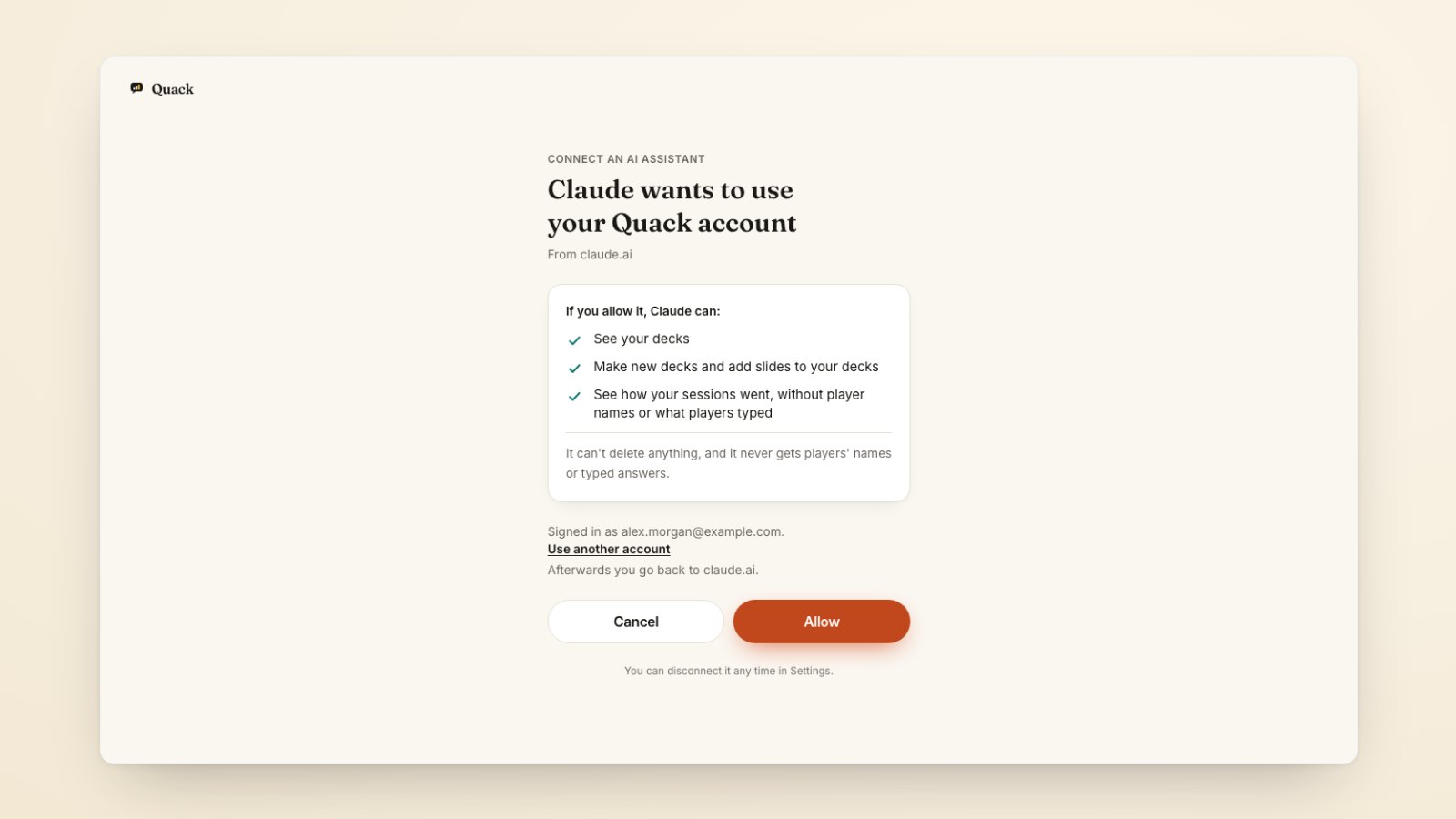
Your assistant then sends you to Quack to sign in and approve it. The page says which assistant is asking, what it will be able to do, what it can't do, and which Quack account you're approving it for. The setup page has the same steps with more detail.
Ask for a deck
Ask the way you would ask a colleague: "Make a 10-question quiz on the water cycle for 12-year-olds in Quack." Or "Turn these meeting notes into a Quack deck with three polls to check we agree."
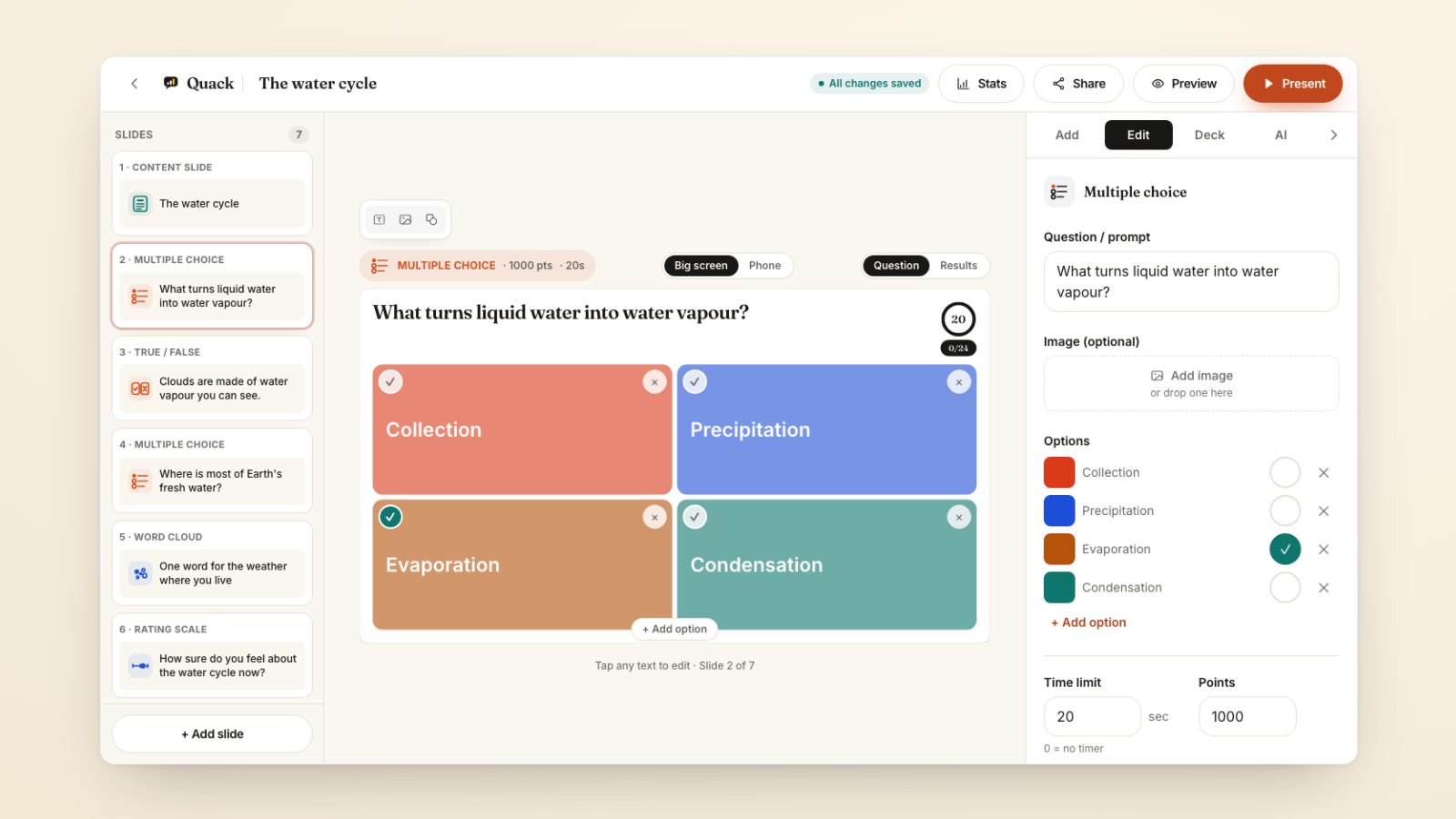
Your assistant writes the slides and Quack checks every one with the same checks Quack AI's own slides go through. A question with only one answer option, or a poll with nothing to vote on, is left out, and your assistant is told which slide and why, so it can fix it and send it again.
It can write most of what you can build by hand: multiple choice, true or false, type the answer, guess the number, put in order, polls, rating scales, word clouds, open questions, Q&A and presentation slides with designs. It can add speaker notes too. Image questions and pin-on-image need pictures, so those stay with you. A deck with scored questions gets its final results board added automatically.
None of this uses your Quack AI credits. Your assistant does the writing.
Present it like any deck you built
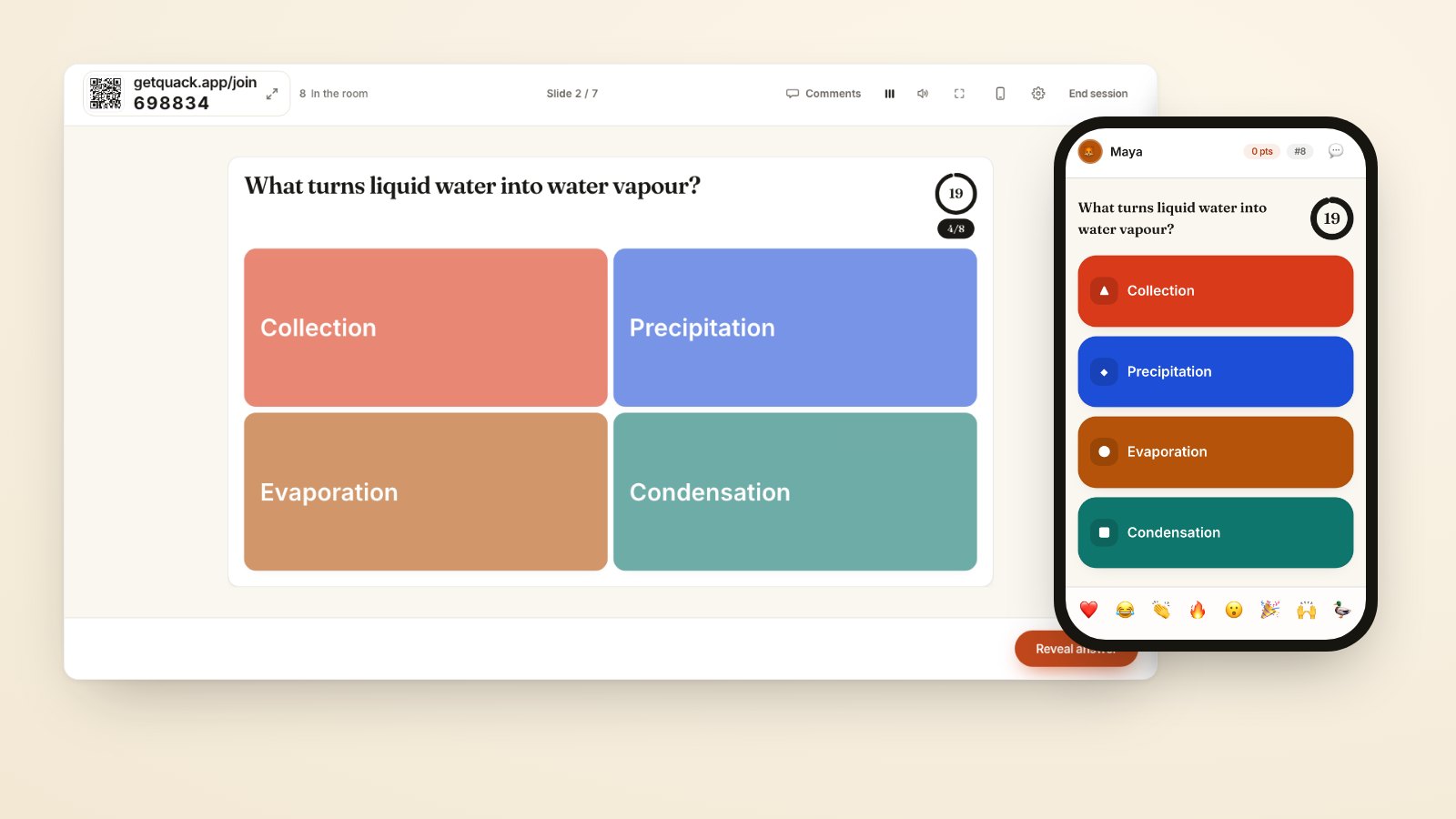
What your assistant makes is an ordinary Quack deck. It shows up under My decks, you can change any slide, share it with a colleague, and present it with the same join code and QR on the big screen as always.
Your assistant can also add to a deck you already have: "Add a word cloud at the end of my kickoff deck asking for one word about the project." It reads the deck first, so the new slides fit, and adds them before the final results board. If that deck is open in Quack's editor at the time, reload the page before you carry on editing there.
Ask how it went
After a session, ask: "How did yesterday's quiz go? Which question did most people get wrong?" Your assistant can read each question's results: how many answered, the share who got it right, the votes for each option, averages on scales, the words in a word cloud, and the top scores by rank.
Two things never leave Quack through the connector: players' names, and anything players typed, such as open answers and Q&A questions. Your assistant sees that a question had 23 open answers. Reading them happens in Quack, on the session's results page.
You stay in charge
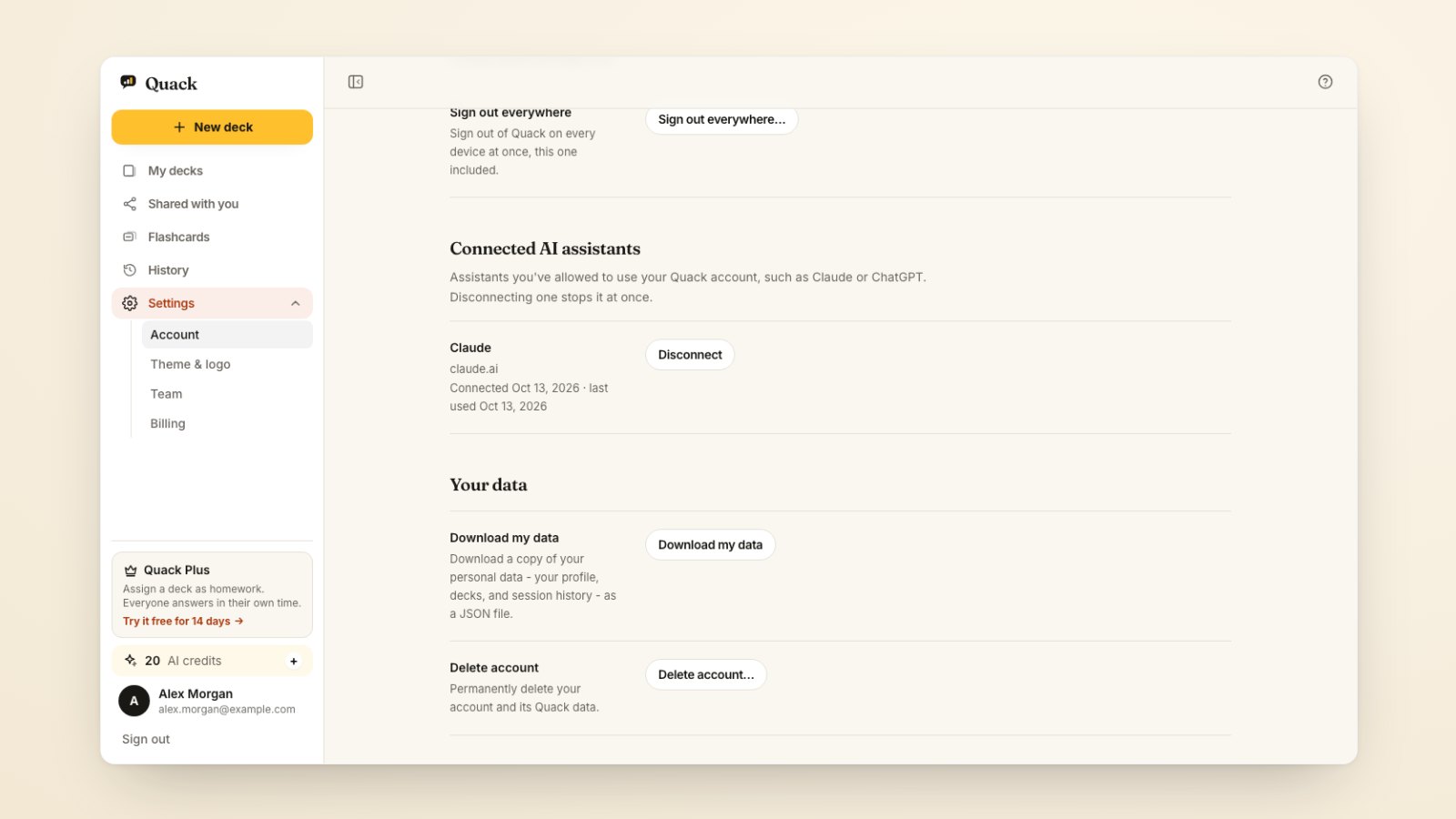
Nothing can be deleted through the connector. Every assistant you connect is listed in Quack under Settings, Connected AI assistants, and Disconnect takes effect on its next request. Signing out everywhere disconnects them all.
The connector is free on every Quack plan. What your assistant receives is handled under its own terms, and Quack's own AI still runs in the EU; the privacy policy has the details.
Try it
Connect Quack to the assistant you use most, then ask it for a five-slide warm-up for your next meeting: one word cloud and four quick questions. Open the present link it gives you, and you have gone from a sentence to a room answering on their phones in a couple of minutes. How to run a live quiz game the whole room joins from their phone covers the session itself.