Run your session from your phone, with your notes in your hand
Pair your phone with the big screen and move through a Quack session from anywhere in the room, with your speaker notes for this slide and the next.
· 4 min read · The Quack team
When you present from a laptop, the laptop decides where you stand. Every walk to the back of the room ends with a walk back to press Next, and your notes sit on a screen you can't see from the front.
The phone remote moves the controls to your hand. The big screen keeps showing the room what it should see, and your phone shows you what only you should see: your notes, how many have answered, and the one button that moves the session on.
Pair your phone in one scan
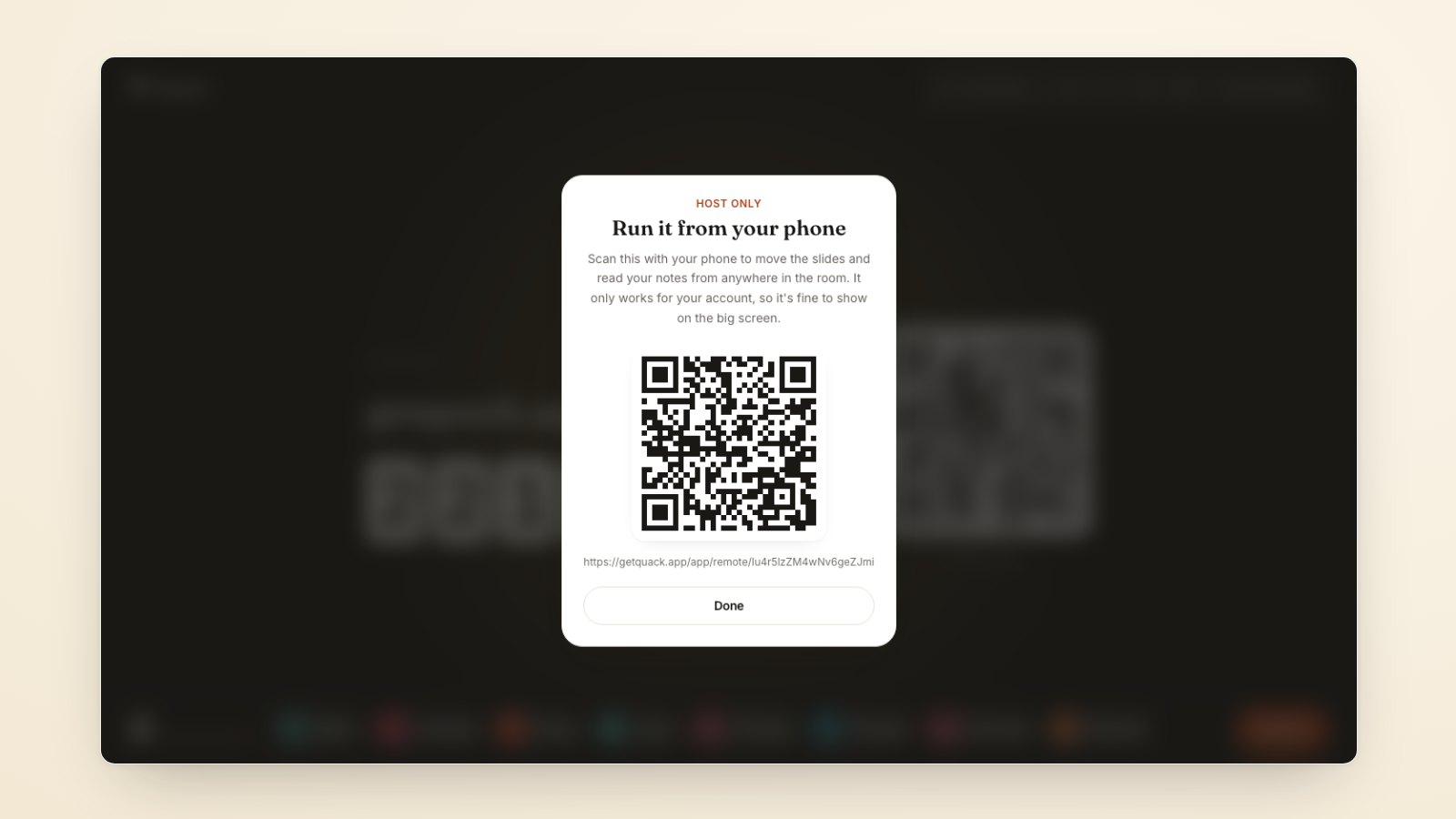
Press Present as usual. In the lobby, or in the bar at the top once you have started, the phone button opens a QR code marked Host only. Scan it with your phone's camera. If your phone isn't signed in to Quack yet, sign in with the same account and the remote opens.
While the code is up, the big screen blurs everything behind it, so nobody in the room scans the wrong code. And if someone does scan yours, it gets them nowhere: the remote only opens for the account that started the session. Anyone else is told it isn't theirs, and the server refuses their presses anyway.
What the remote shows
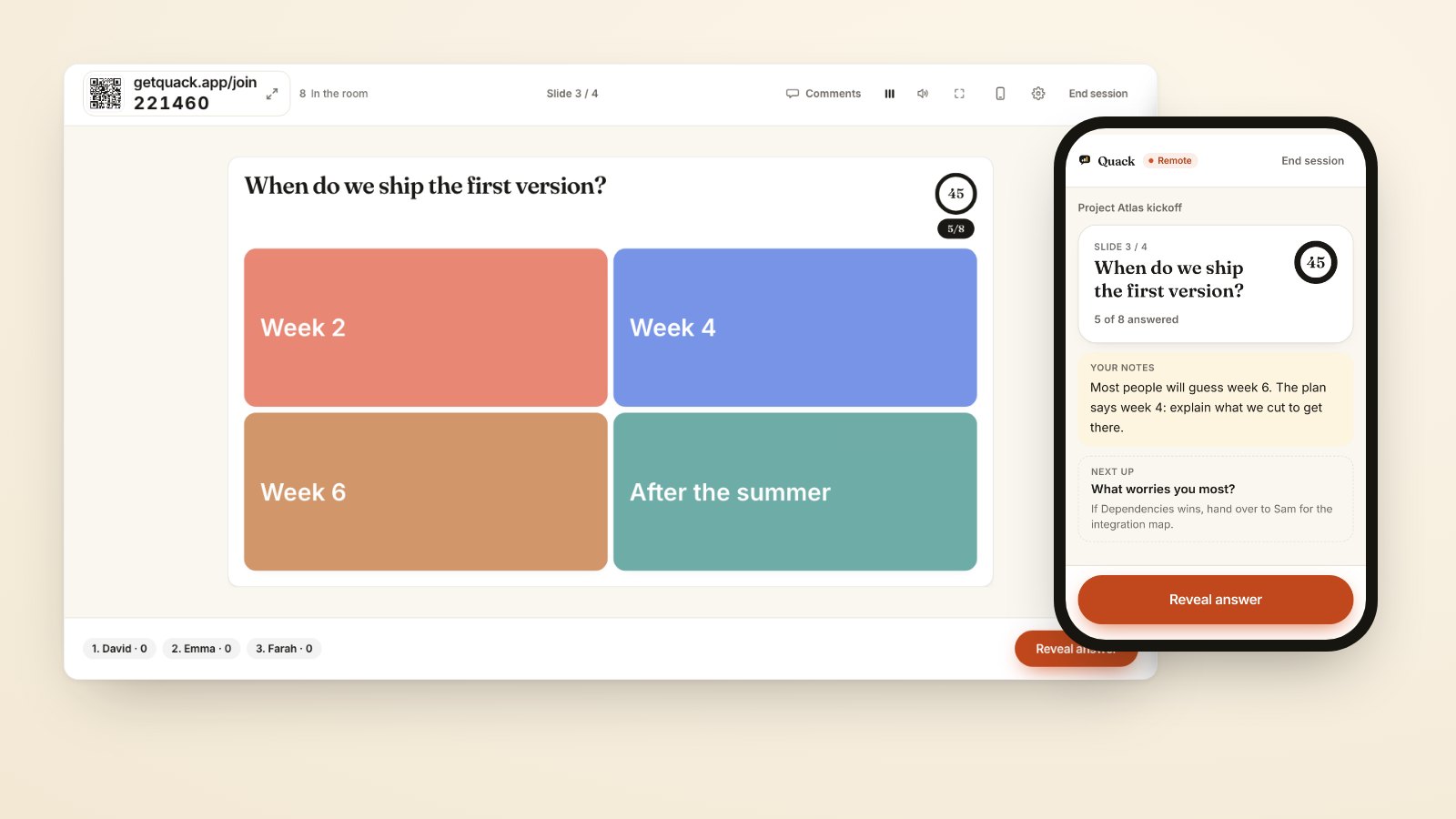
- The slide the room sees, with its number, and the timer if the question has one.
- How many have answered, as "5 of 8 answered", so you know when to stop waiting without turning round.
- Your notes for this slide, and the next slide with its notes underneath, so you can set up what comes next while the room is still answering.
- One big button that does what the button on the big screen does: Start, Reveal answer or Show results, Next, and Finish on the last slide.
- End session, behind a confirm, so a stray tap in your pocket can't end the session.
The phone stays awake while the remote is open, on phones that allow it, so it doesn't lock halfway through a sentence.
Write notes for every question
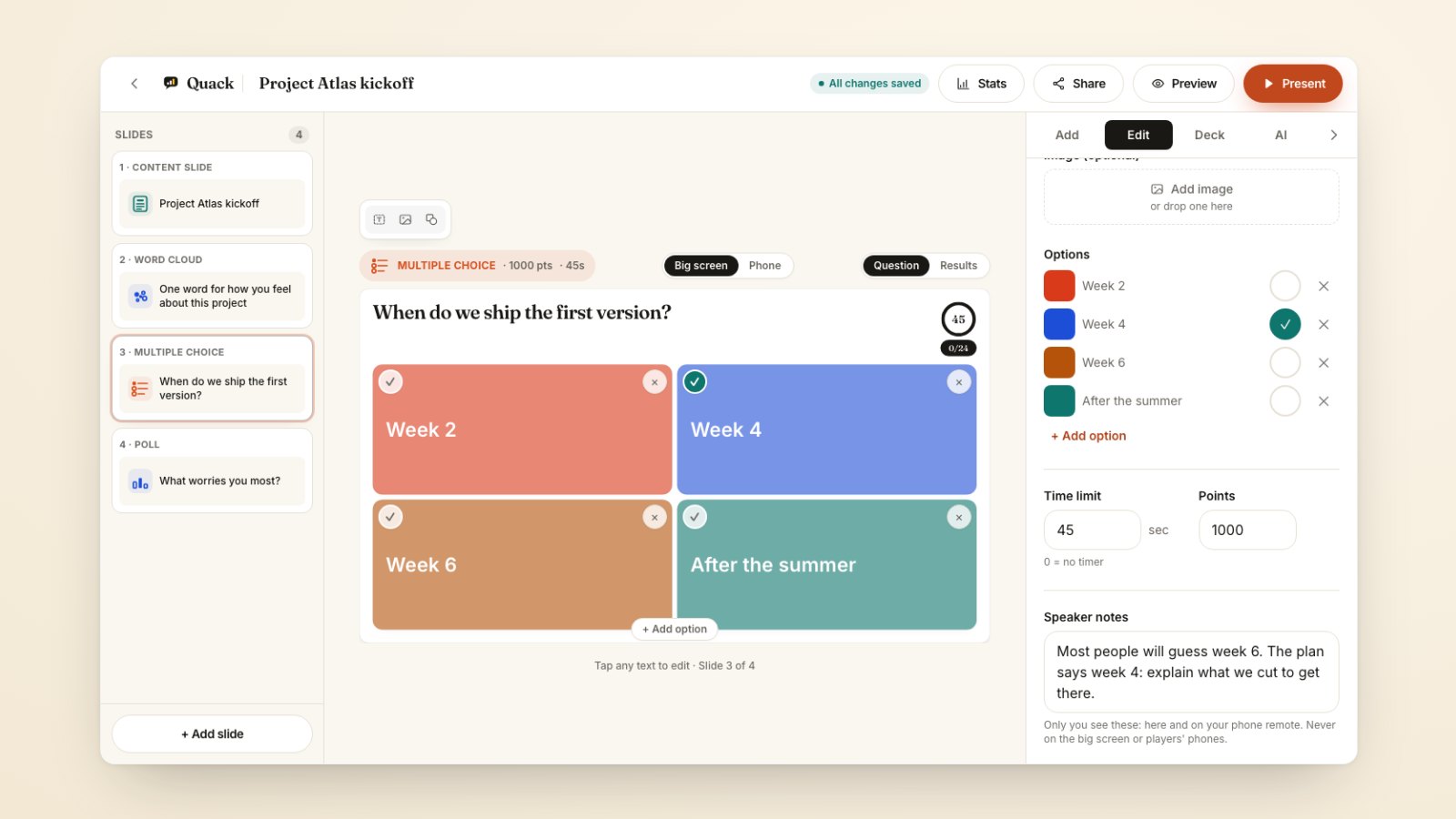
Speaker notes used to belong to content slides only. Every slide type has them now, at the bottom of the slide's settings in the editor. They show in the editor and on your remote, and never on the big screen or on the players' phones.
Notes earn their place on questions more than anywhere else. Write down what you want to say at the reveal, the follow-up question for when the room splits, or who you hand over to after a poll. "Most people will guess week 6, explain what we cut" is one line in the editor, and it saves you from ad-libbing the most important minute of the meeting.
Started on the laptop, picked up on the phone
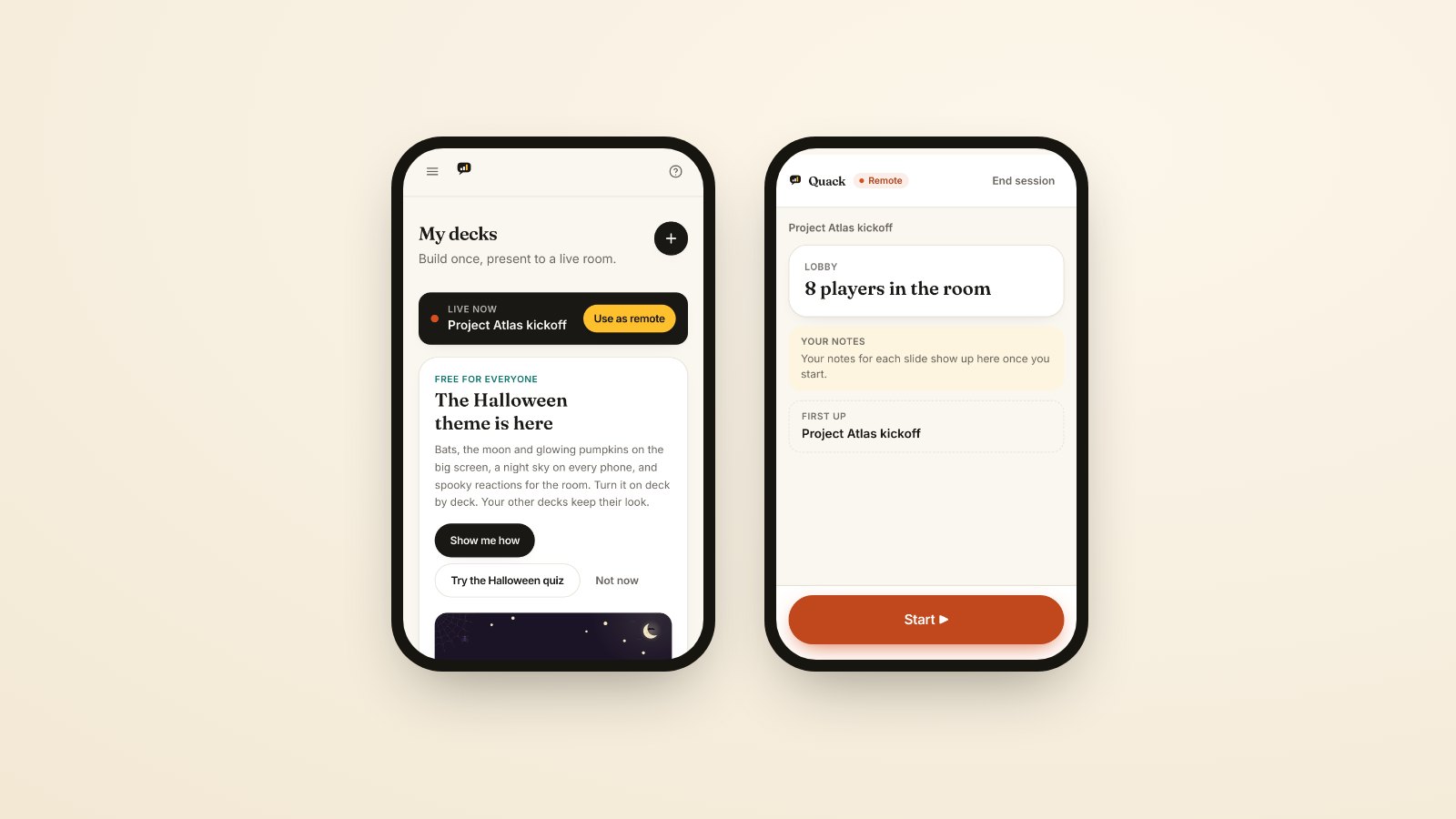
If you didn't scan the code, you still get there. Sign in to Quack on your phone while a session is on the big screen and the top of your dashboard says Live now, with a Use as remote button. And if you open Present for the same deck on your phone, Quack asks whether you want this phone as the remote or want to present here too, instead of quietly starting a second screen.
What stays on the big screen
The laptop stays in charge of the room. Music, sounds and questions closing on their own all happen there, so nothing changes for the room if your phone locks or you put it in your pocket.
You can mix the two. Press Next on the laptop and on the phone in the same breath and the session moves one slide, never two.
There is no Back button on the remote yet. And in phone-only mode there is nothing to pair: your phone already runs that session.
Try it on your next session
Before your next meeting or class, open your deck and write one line of notes on each question: what you'll say when the answer appears. Start the session on the big screen, pair your phone before people arrive, and run the first five minutes from the back of the room. If you want ideas for what to do with the answers once you have them, How to run a live quiz game the whole room joins from their phone covers reading a reveal, and What to do after the session ends covers the results.