how to build a live interactive deck you can run all year without rewriting it
How trainers and educators can build evergreen interactive slide decks that survive cohort changes without manual rewriting before every session.
· 5 min read · Fiona

Trainers who rebuild decks every Monday morning are usually solving the wrong problem. When a slide references last quarter's revenue target or asks a question that falls flat with senior cohorts, the deck gets rewritten by hand before the next delivery. Within four months, three conflicting versions sit in your account, each customized for a specific group and none maintained properly.
A reusable deck separates permanent principles from temporary cohort context. It uses prompts that draw context out of the people in the room rather than baking temporary details into the slides.
Separate structural principles from cohort variables
A slide breaks across cohorts when it hardcodes three things: calendar dates, internal organizational names, and specific baseline knowledge assumptions.
Replace specific organizational examples on content slides with structural dilemmas. Instead of asking "How will our team hit the Q3 marketing goal?", format the slide around the operational constraint: "When priorities conflict between speed and quality, which trade-off fails first in your department?"
Use an interactive format like a 2×2 grid or ranking slide to let the cohort plot their own reality. The slide text stays identical across engineering teams, customer service cohorts, and executive workshops. The resulting data points change completely based on who holds the phones.
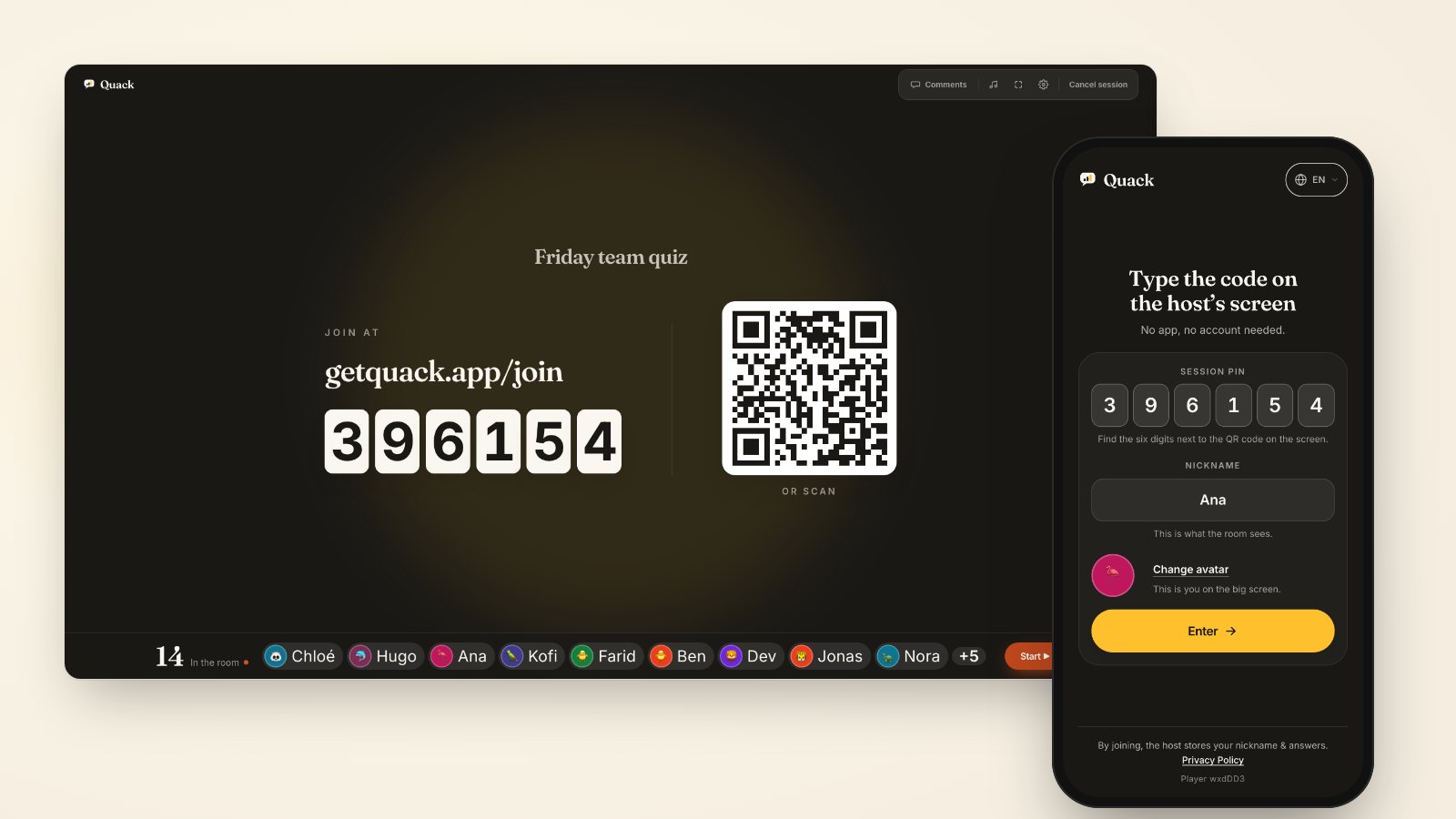
Presenting from one unchanged master deck does not mean wiping past answers manually. In Quack, every time you press Present, the session generates a fresh six-digit PIN. The previous delivery's numbers, written submissions, and leaderboard scores remain preserved in your History for 12 months, separated cohort by cohort. What to do after the session ends walks through analyzing those historical cohorts without muddying your live deck.
Write open prompts that balance fast and slow groups
Fixed-choice multiple-choice questions work well for technical compliance, but open-ended questions often freeze when cohorts vary in seniority or confidence. A prompt like "What did you think of the pre-reading?" gets silence from junior classes and cynical jokes from senior staff.
Make your warm-ups and pulse checks structurally resistant to different cohort temperaments:
- Constrain the volume. Run a word cloud with a single submission per player instead of an open paragraph. "One word for your current blocker on this topic" forces participants to distill their thought before tapping enter.
- Remove the search for the clever answer. Use a rating scale from 1 to 10 with clear labels at each end ("Theoretical only" to "In production daily"). Outliers stand out immediately without putting any individual on the spot.
- Use forced-choice head-to-heads. A This or That slide creates instantaneous visual data without requiring participants to articulate nuanced arguments on their keypads during the first five minutes.
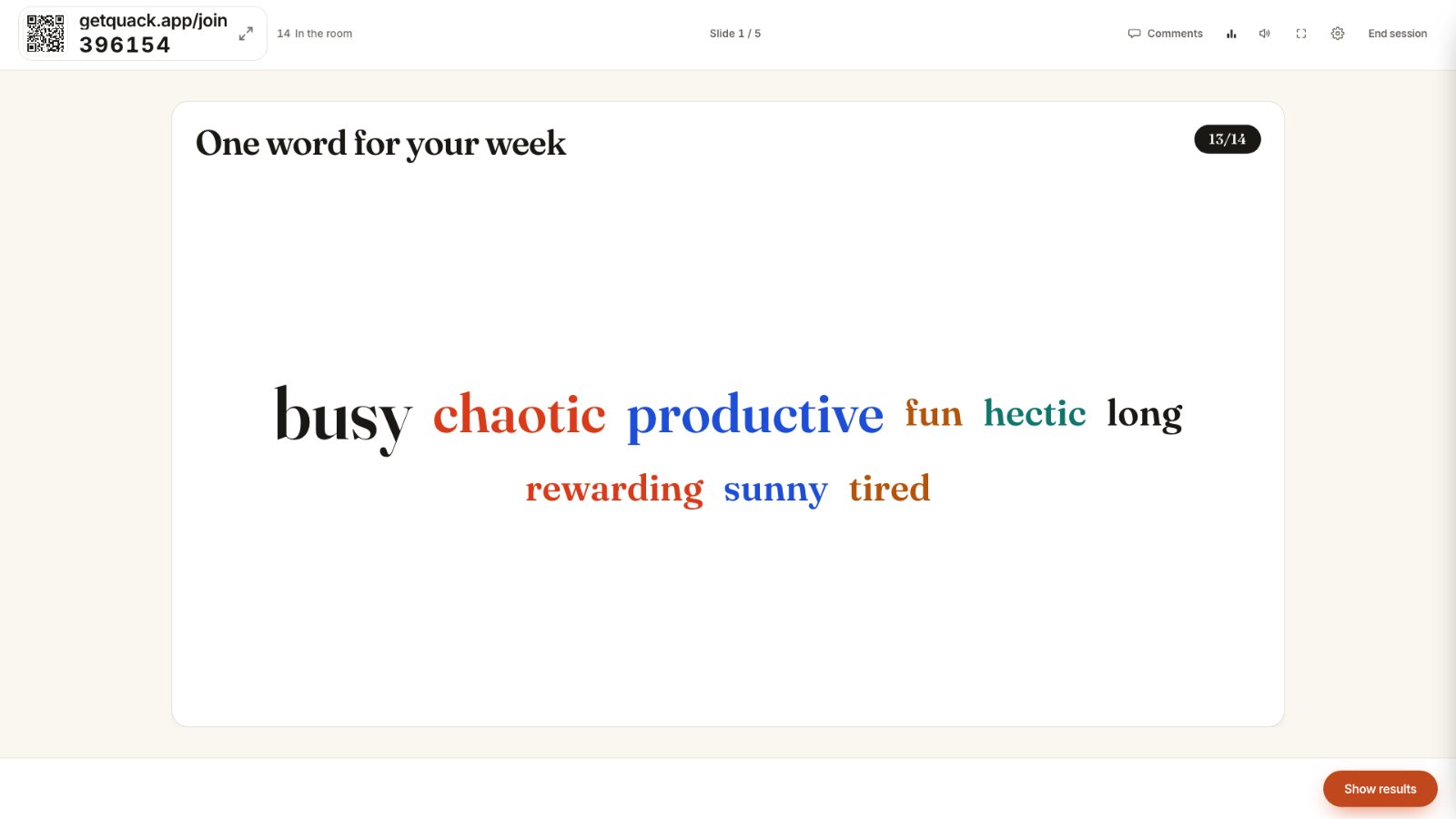
Word clouds and polls in Quack collect responses anonymously. The big screen displays aggregate counts without names attached, which prevents a hesitant cohort from waiting for a senior manager to answer first. For design criteria on introductory questions, see word cloud questions that actually work.
Anchor scenario questions to common operational errors
When writing scored knowledge checks for recurrent onboarding or compliance training, avoid trivia that expires. Build questions around recurrent misconceptions that new hires repeat year after year.
If 80% of new hires confuse product tier permissions, write a multiple-choice question that includes that exact misconception as the primary distractor.
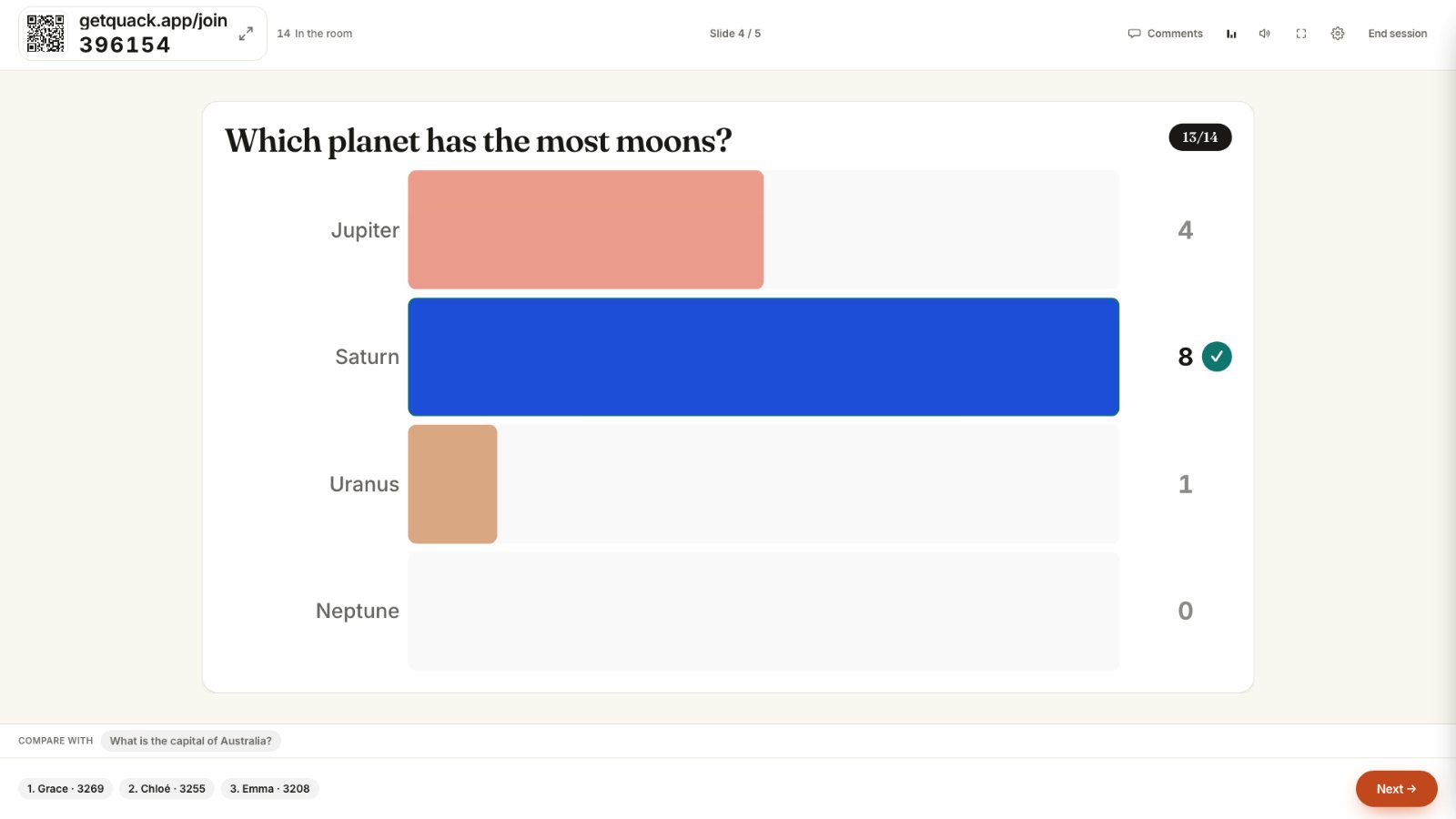
When the reveal displays a split room, you do not need to rewrite the slide for next time. The split confirms that the slide is doing its job: exposing an authentic confusion. Take 60 seconds right then to explain the difference while the answers are visible on screen. If everyone picks the right answer effortlessly across three consecutive cohorts, delete the slide or make the options more demanding; it is taking up delivery time without testing understanding. Detailed techniques for writing these options are covered in quiz questions that split the room.
Keep scoring on Accuracy only for instructional sessions. Speed counts awards up to double points for answers submitted at second one, which rewards reflexive guessing over deliberate evaluation. Why participants guess early breaks down the behavioral shift that happens when speed penalties are active.
Build modular branches with content pacing controls
Different cohorts work at wildly different speeds. A technical cohort might race through system architecture slides in eight minutes, while a cross-functional cohort needs twenty minutes on the same topic.
Rather than maintaining a "short deck" and a "long deck", build pacing mechanisms directly into the master file:
- Use reveal bullets on content slides. In the layout panel, enable bullets one at a time. The slide opens with its headline only. Pressing Next or the right arrow advances one bullet point without showing the remainder. If the cohort understands the concept instantly after the first point, you can move forward rapidly without exposing redundant text.
- Place optional Q&A slides before major topic transitions. A live Q&A slide allows participants to type questions up to 200 characters and upvote items submitted by peers. If a cohort has zero questions, the slide takes five seconds: confirm the empty board and advance. If a cohort is struggling, the upvoted list tells you exactly what needs addressing before moving to the next section.
- Use the comments drawer as an unobtrusive backchannel. Participants can send text messages into the comments drawer throughout the session. If an advanced cohort asks questions that would derail a foundational group, read them from the host view and address them selectively without adding extra slides to the presentation sequence.
Run with your phone remote to control the room's eye line
Running the same deck across twenty rooms means walking into rooms with different projector setups, podium placements, and room shapes. Being tethered to a laptop keyboard forces you to face the computer screen instead of reading the room's facial expressions.
Press Phone remote on your desktop toolbar and scan the host QR code using your own mobile device. Your phone becomes a personal controller showing private speaker notes, participant completion counts ("18 of 22 answered"), and the advance button.
When you trigger a reveal from your phone while standing near the screen, you control the pace of conversation. You can wait three seconds for the room to absorb the distribution chart before offering commentary, and you never have to turn your back on the group to reach for a trackpad.
Pick one deck you plan to teach three or more times this quarter. Strip out every reference to a specific date, company division, or temporary goal. Replace your first lecture slide with a rating scale or word cloud that asks the cohort to declare their own experience level, and run that version unchanged with your next two groups.